Set up Google Home voice control
Note: The VREEDA service for Google Home is not yet available, but is coming soon. The following guide already shows you today how the setup will work.
In this tutorial we show you how to connect your VREEDA lights with Google Home. Afterwards you can control them directly from the Google Home app and of course via voice command.
Prerequisites: You have a VREEDA user account, at least one light added in the VREEDA Lighting App, and an active Google account.
1. Install the Google Home app
Download the Google Home app from the App Store (iOS) or Google Play Store (Android) if you don’t have it yet, and sign in with your Google account.
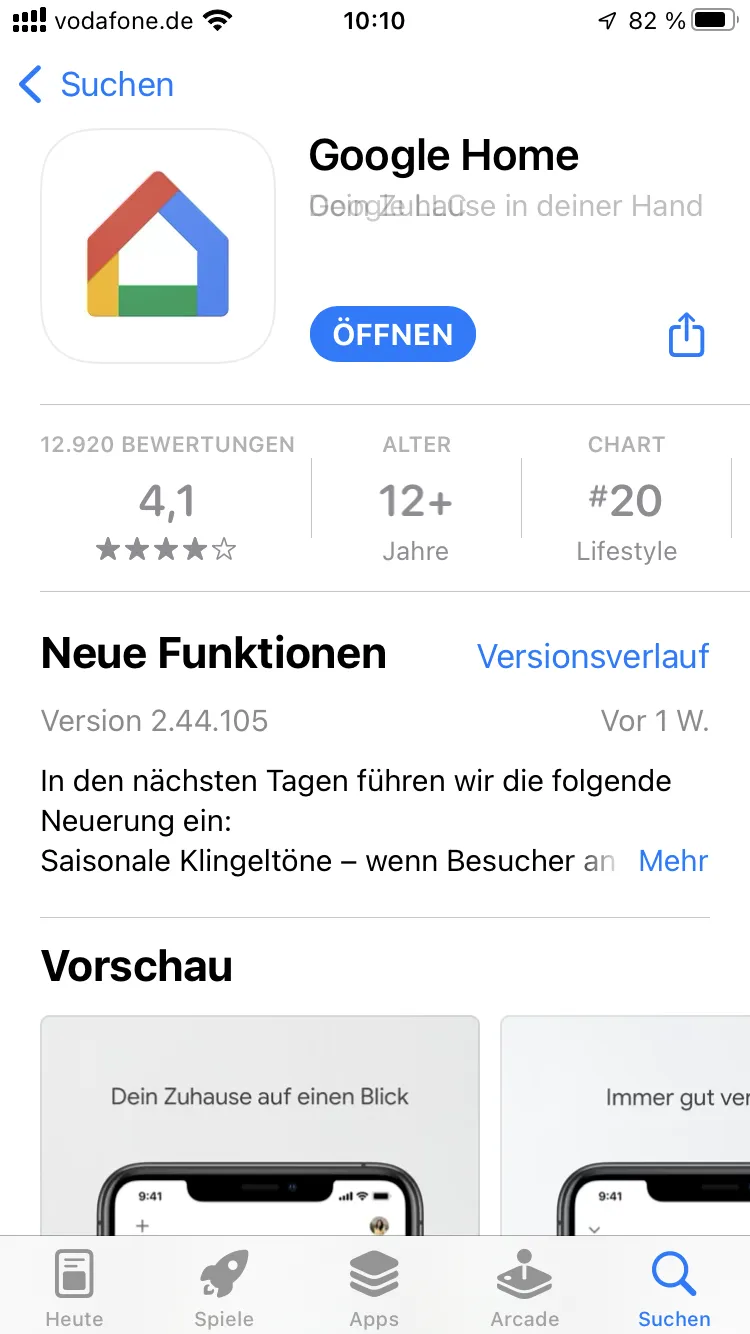
2. Add a device
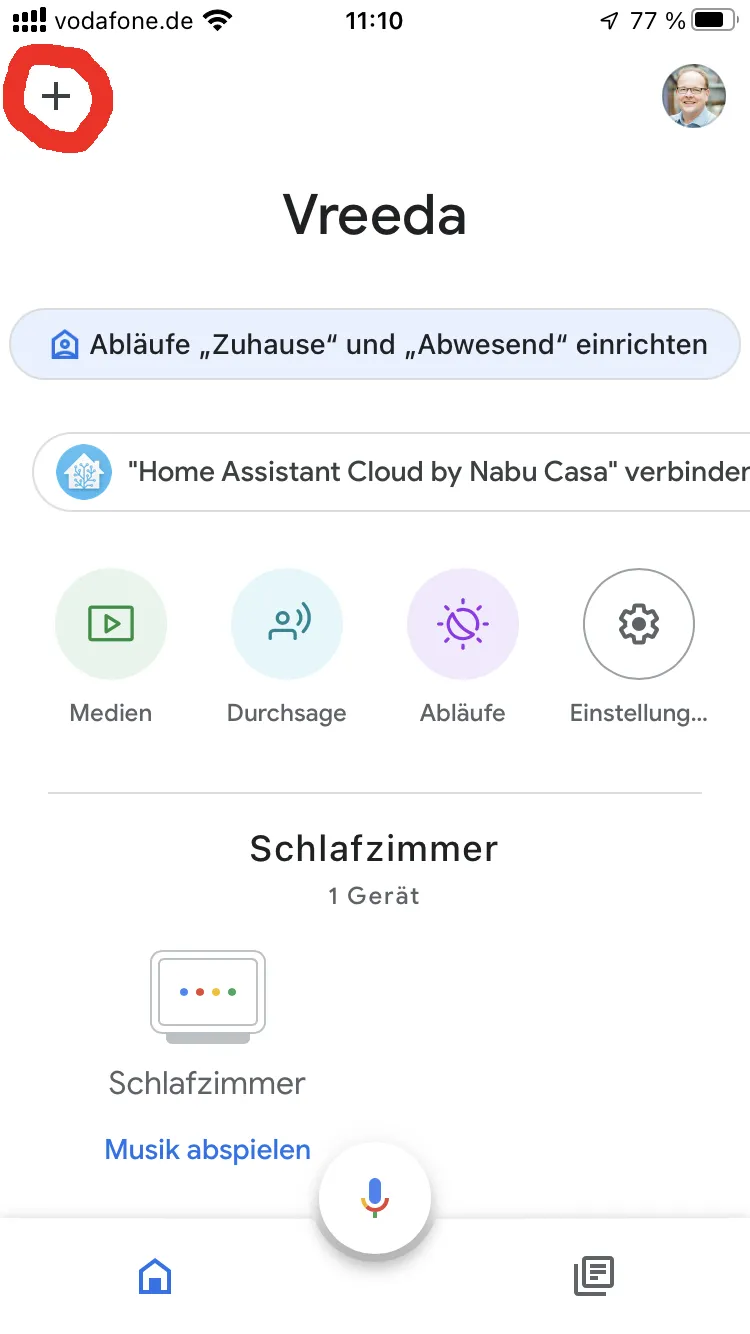
Open the Google Home app and tap the ”+” in the top left.
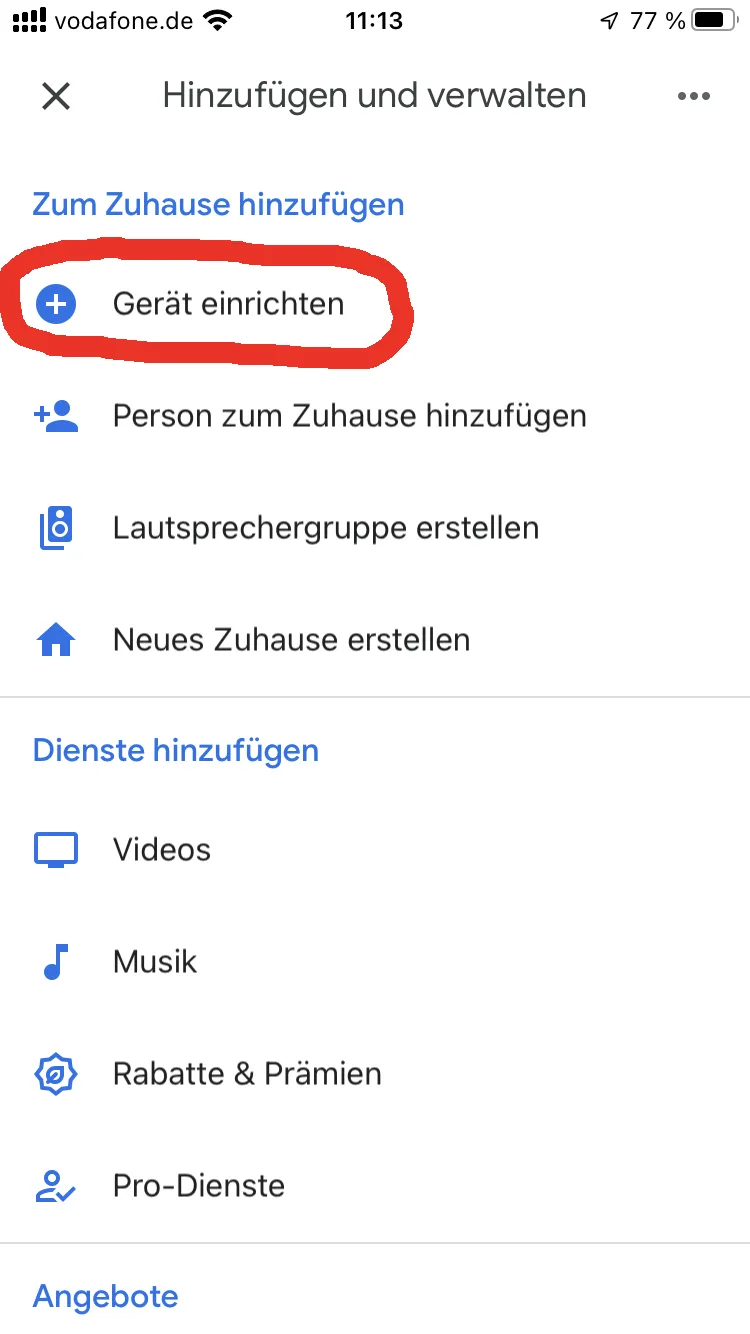
Select Set up device.
In the next step, tap Works with Google.
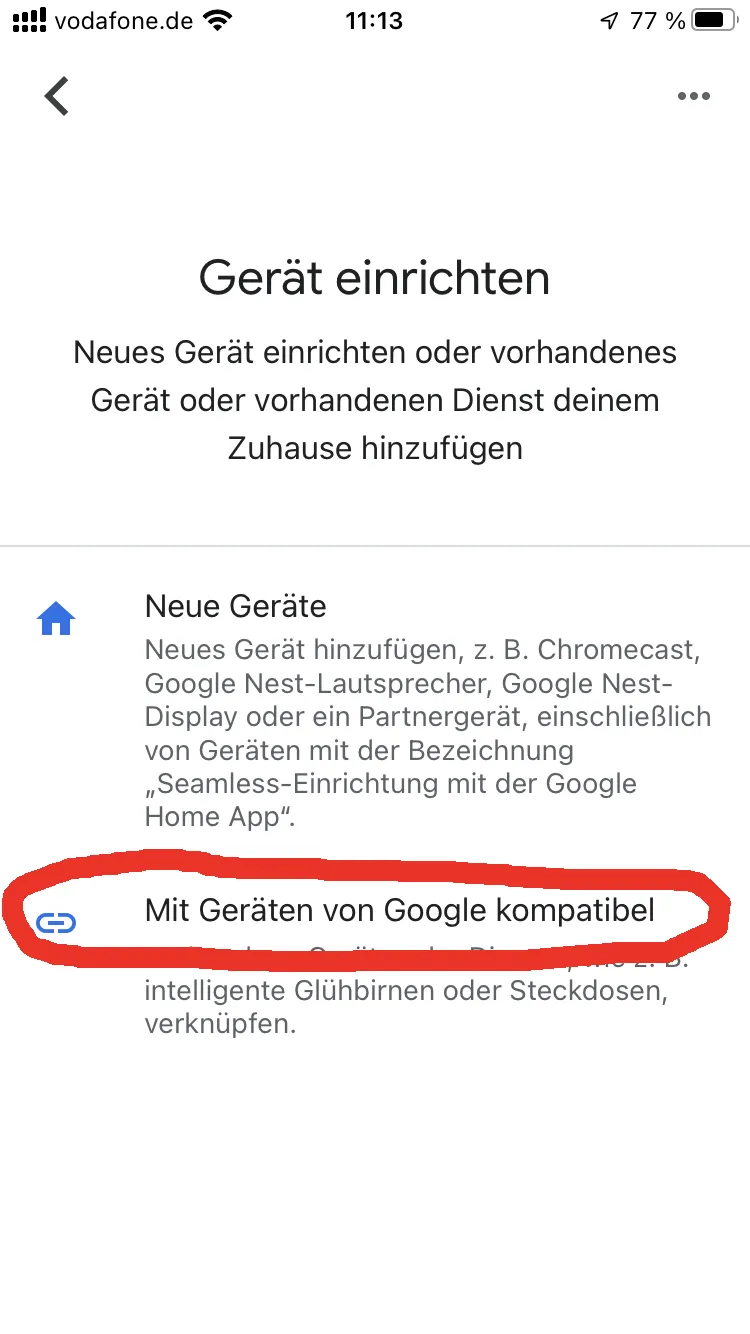
3. Select the VREEDA service
Search for VREEDA and tap on the service.
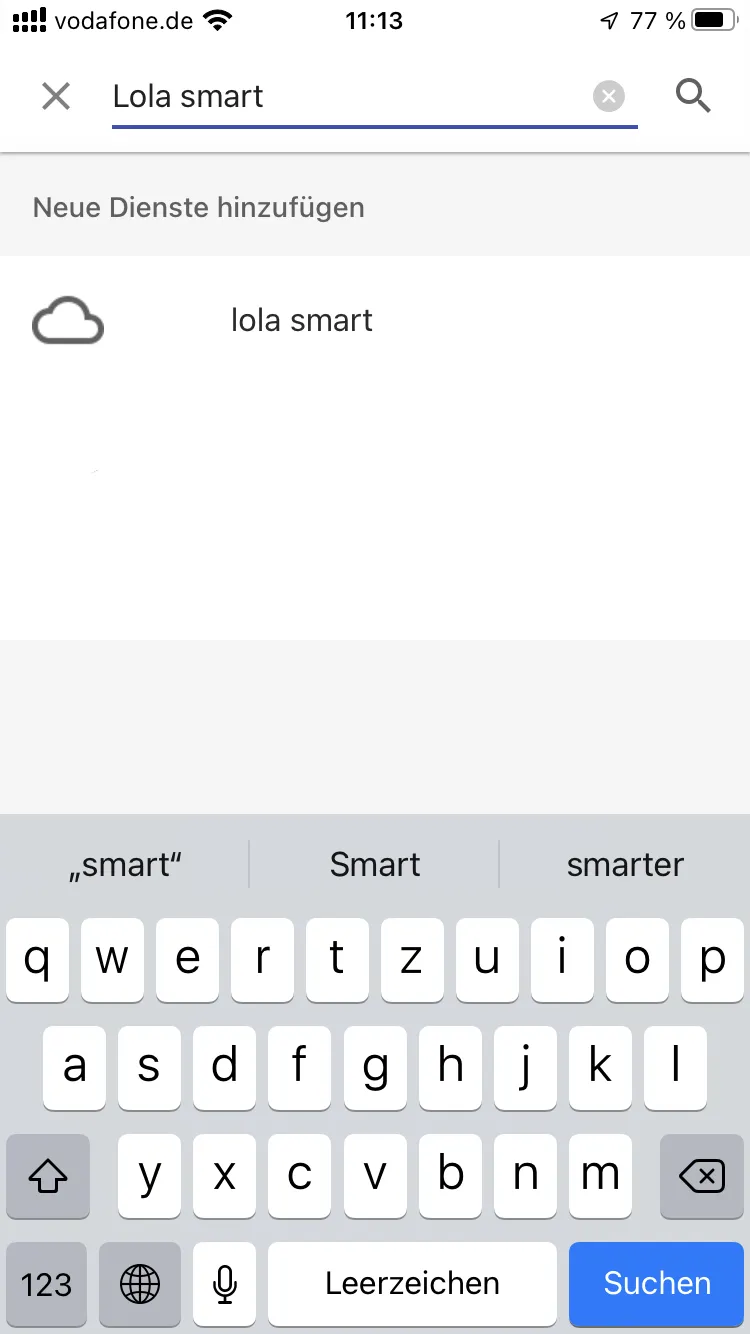
4. Activate the service
Sign in with the email address and password of your VREEDA user account to link the service with your account.
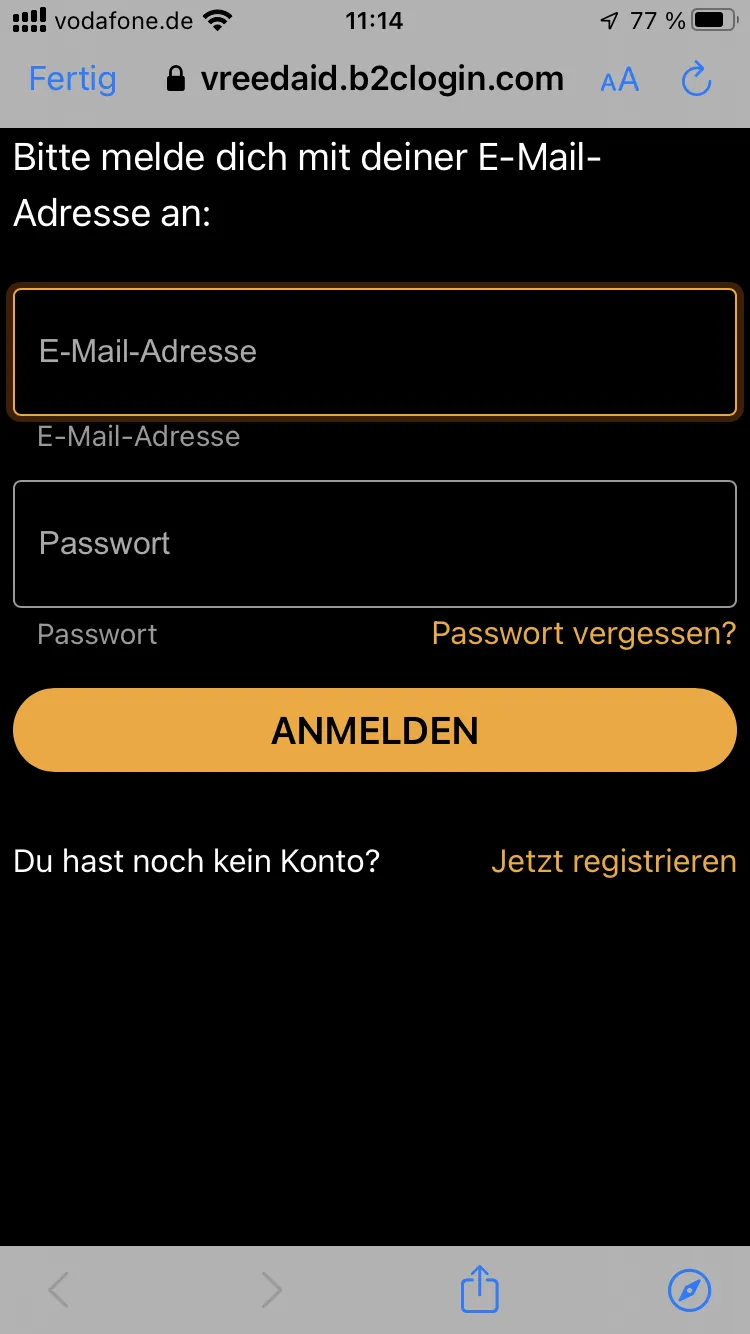
5. Assign devices
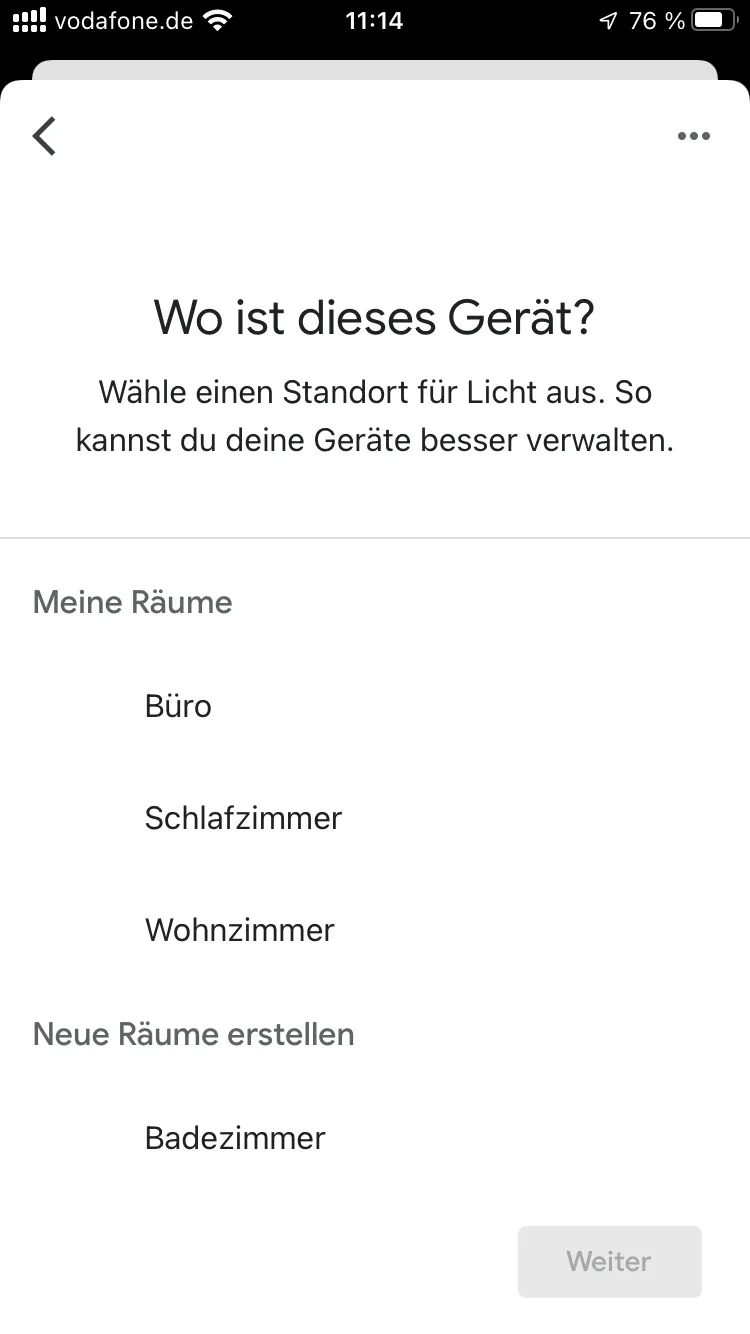
After signing in successfully, Google Home shows you the VREEDA lights it found. You can now assign them one by one to your home and individual rooms.
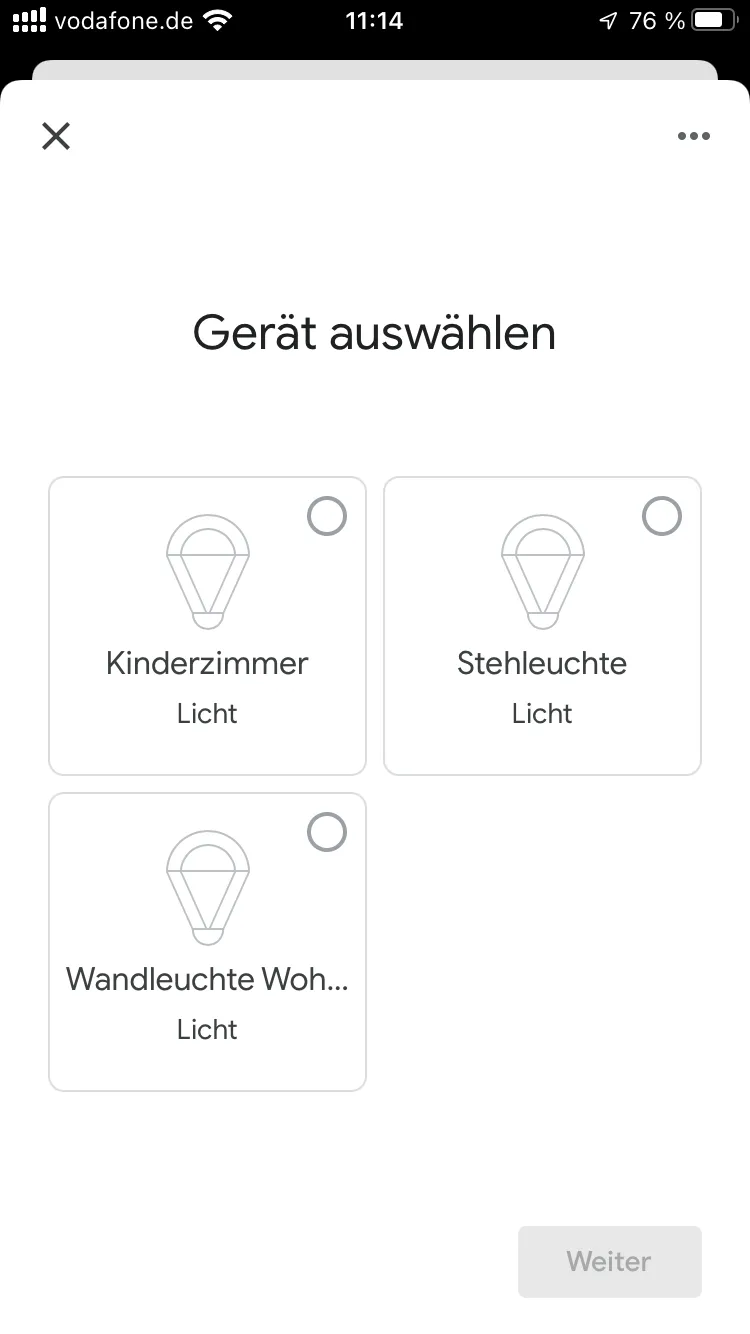
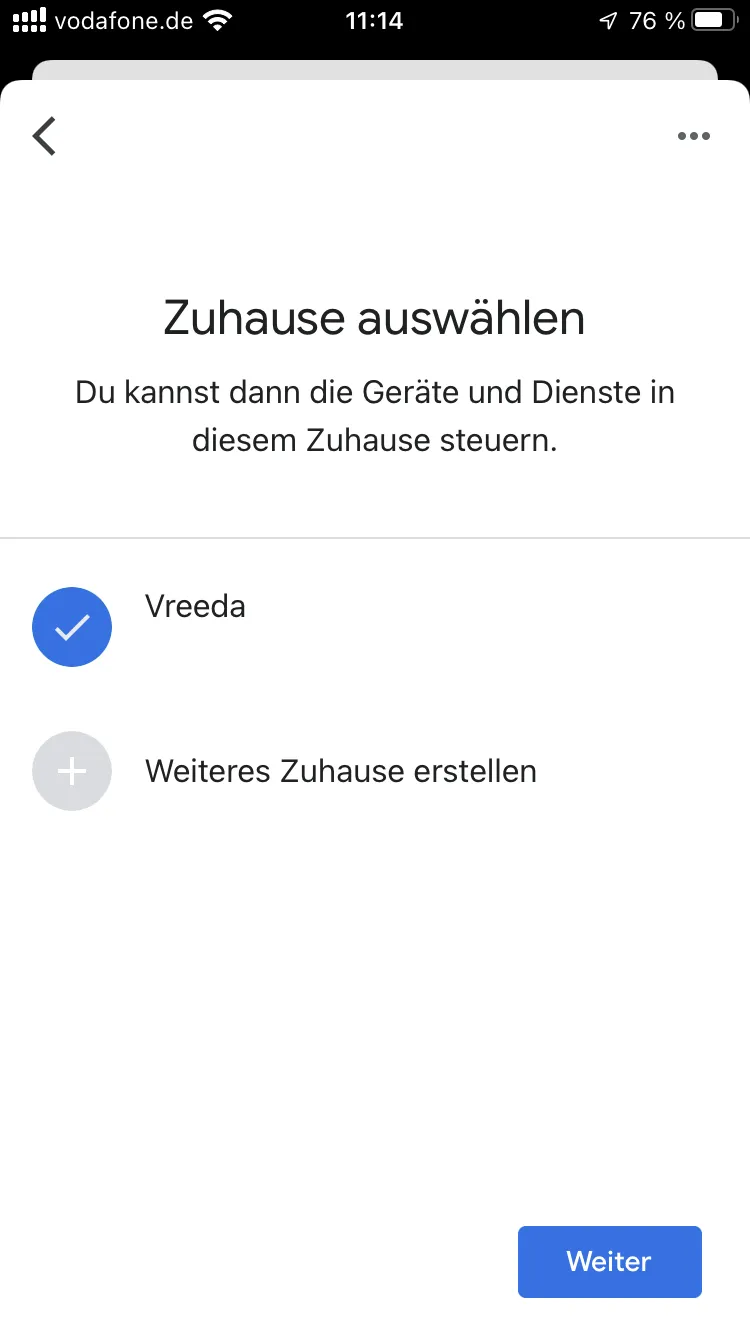
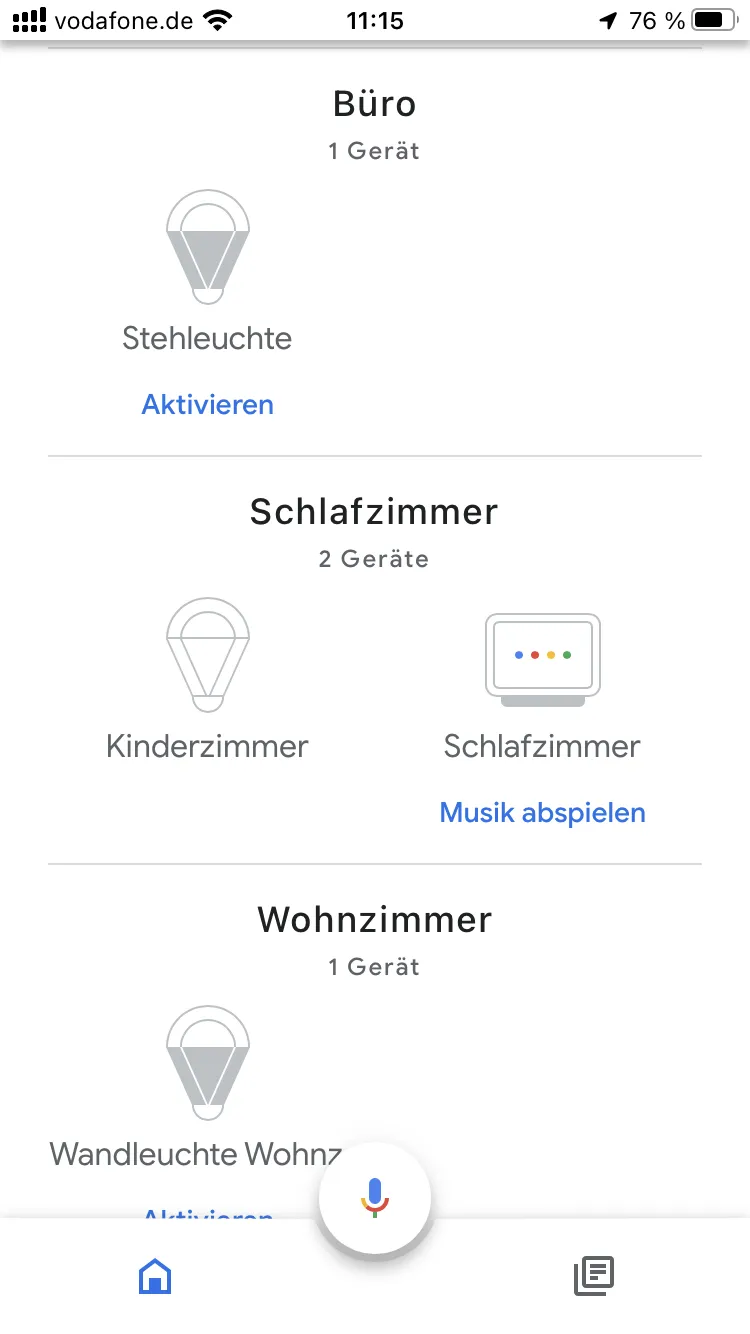
Done! You can now control your VREEDA lights via voice command, for example with “Hey Google, turn on the living room light”.
Still have questions?
We're happy to help — create a support ticket or send us an email.