Pair a lamp manually
Sometimes the VREEDA Lighting App can’t connect your lamp to Wi-Fi automatically. This is usually down to the model or the version of your smartphone’s operating system. No problem – manual pairing is just a few extra steps and works just as reliably.
Prerequisites: Your lamp is in pairing mode (it’s blinking slowly). If that’s not the case, the section Put the lamp into pairing mode will help you.
1. Start manual pairing
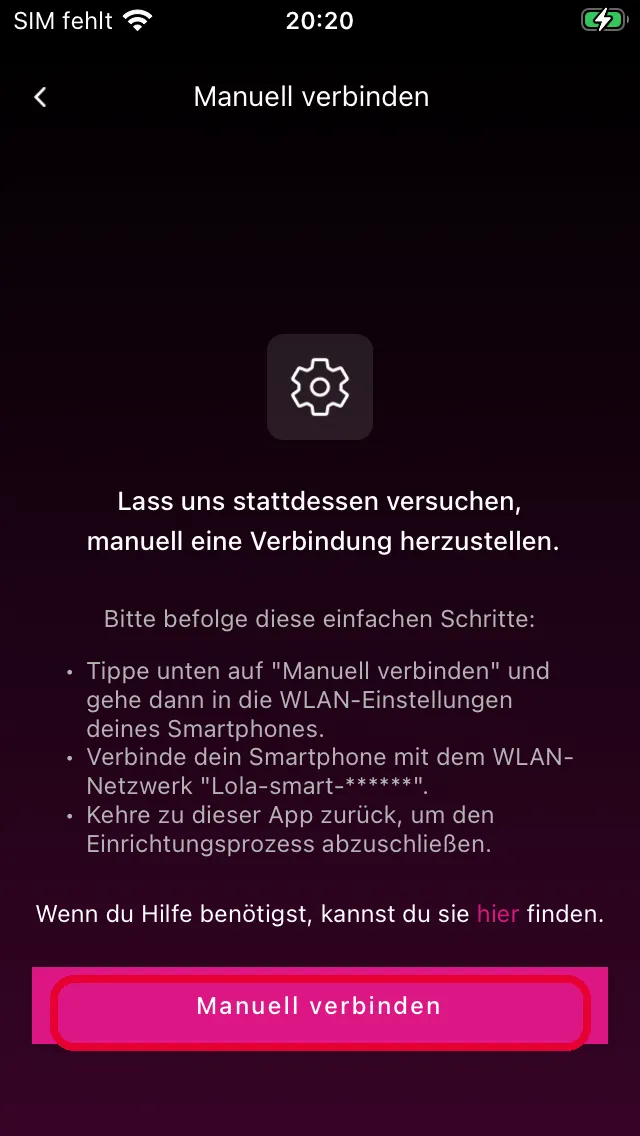
When automatic pairing fails, the app shows you the Connect manually screen. The app briefly explains the three steps that follow. Tap the Connect manually button at the bottom to start the process.
2. Connect to the lamp
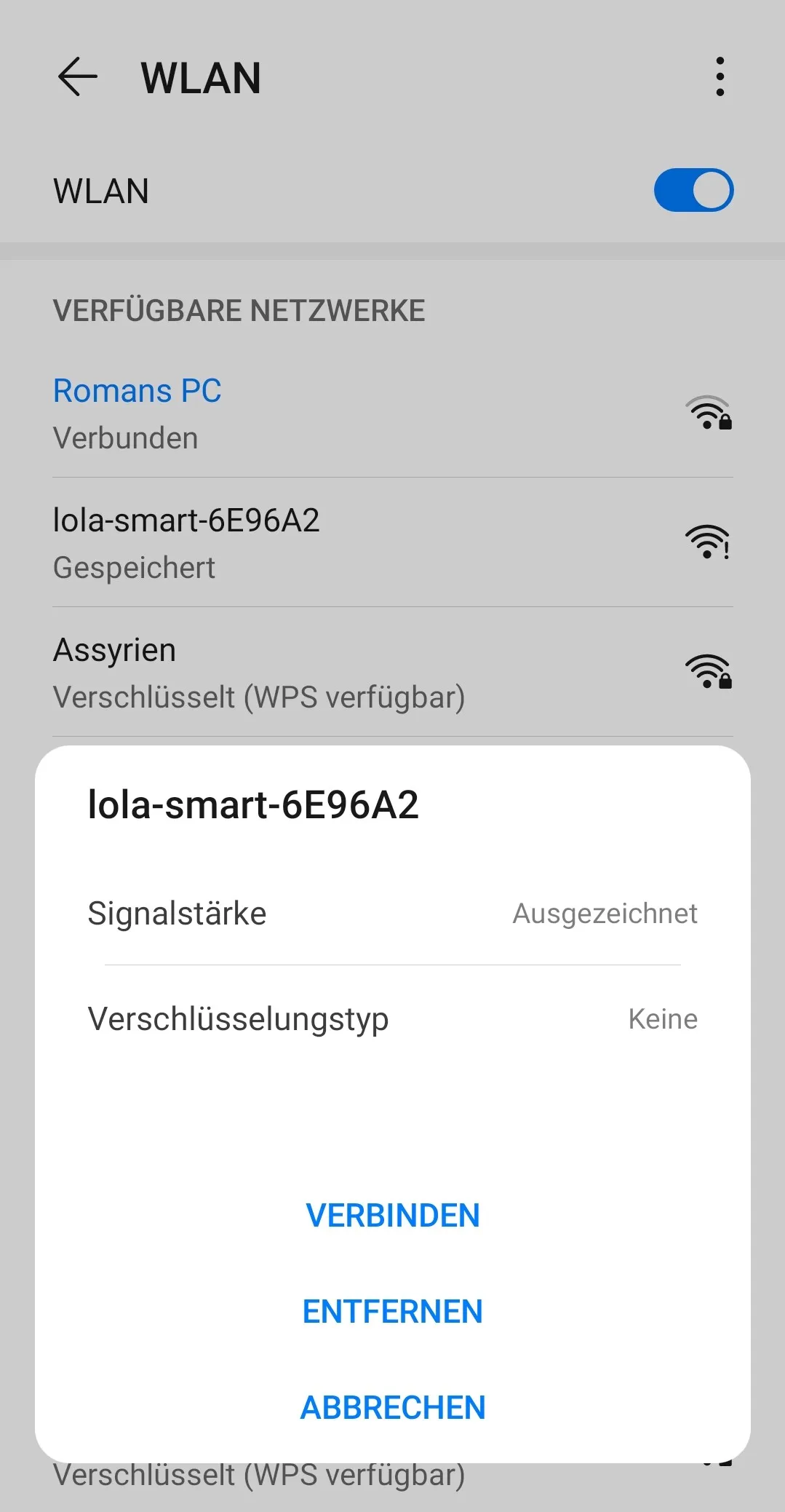
Switch to the Wi-Fi settings on your smartphone. You should see a Wi-Fi network called lola-smart-****** (the asterisks stand for random letters and numbers). Connect your smartphone to this network.
Note: You don’t need a password for this Wi-Fi network. If your smartphone reports that the network has no internet access, you can ignore that – it’s normal.
3. Confirm the connection
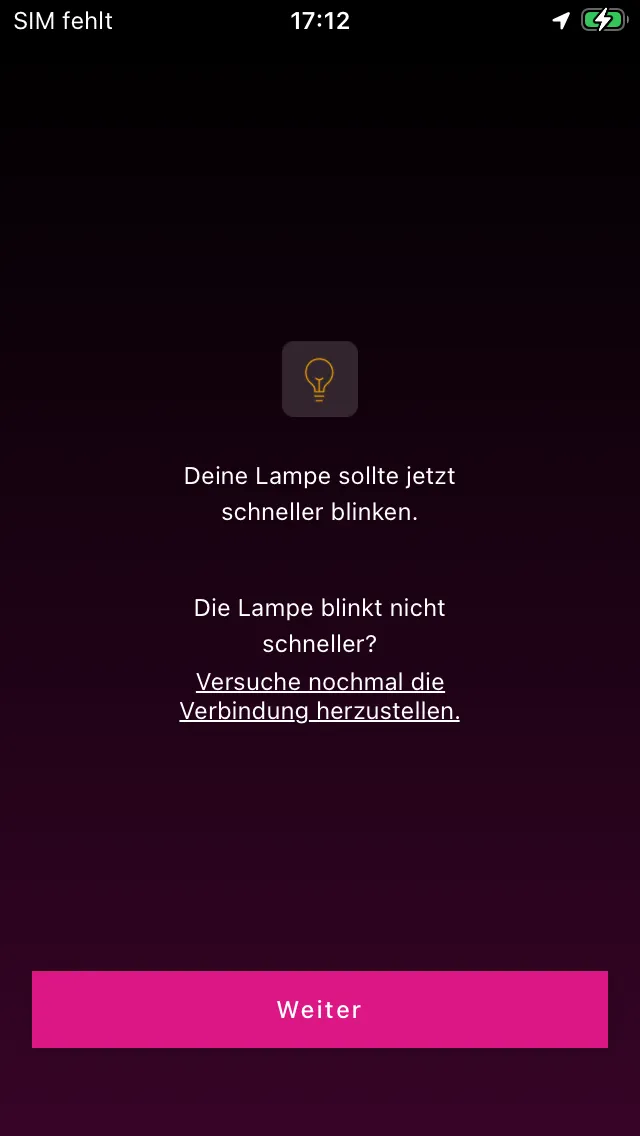
Once the connection is established, your lamp will blink faster. Switch back to the VREEDA Lighting App and confirm with Continue that your lamp is now blinking faster.
4. Select your home Wi-Fi
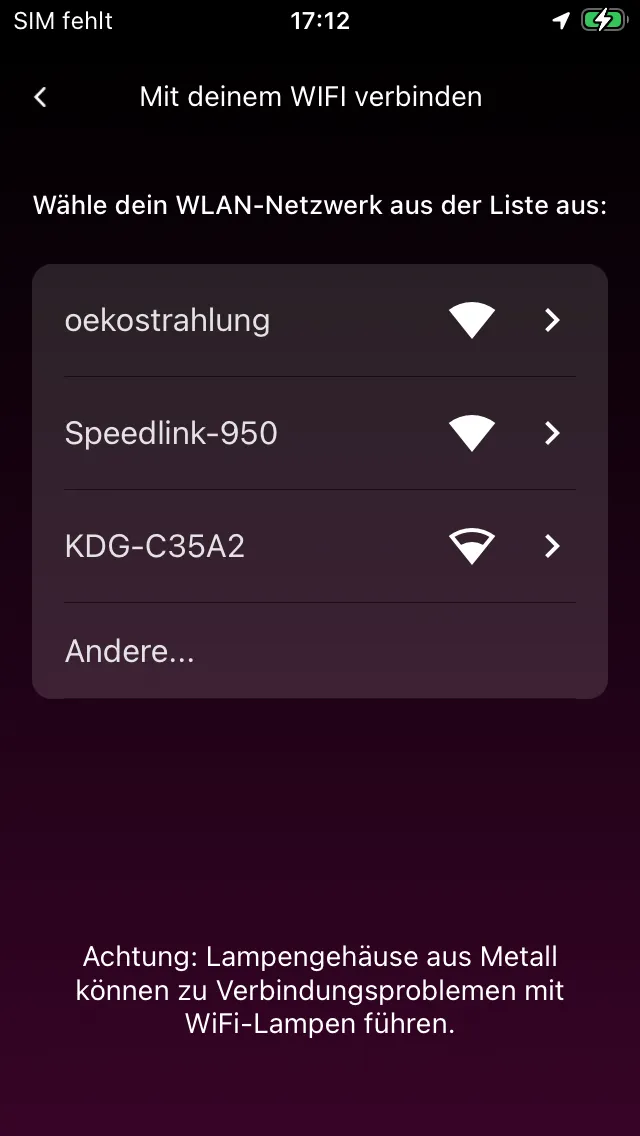
Select your home Wi-Fi from the list. If your network isn’t shown, you can also enter the network name manually using the ”+” button. Pay attention to upper and lower case.
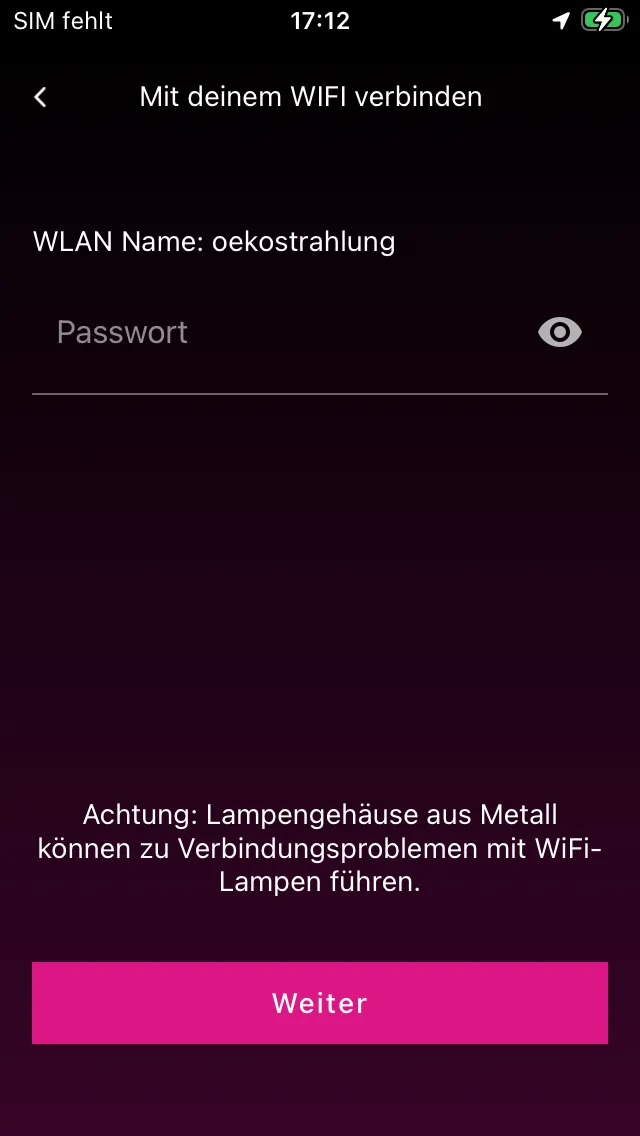
5. Enter the Wi-Fi password
Enter the password for your home Wi-Fi. Again, the correct spelling matters.
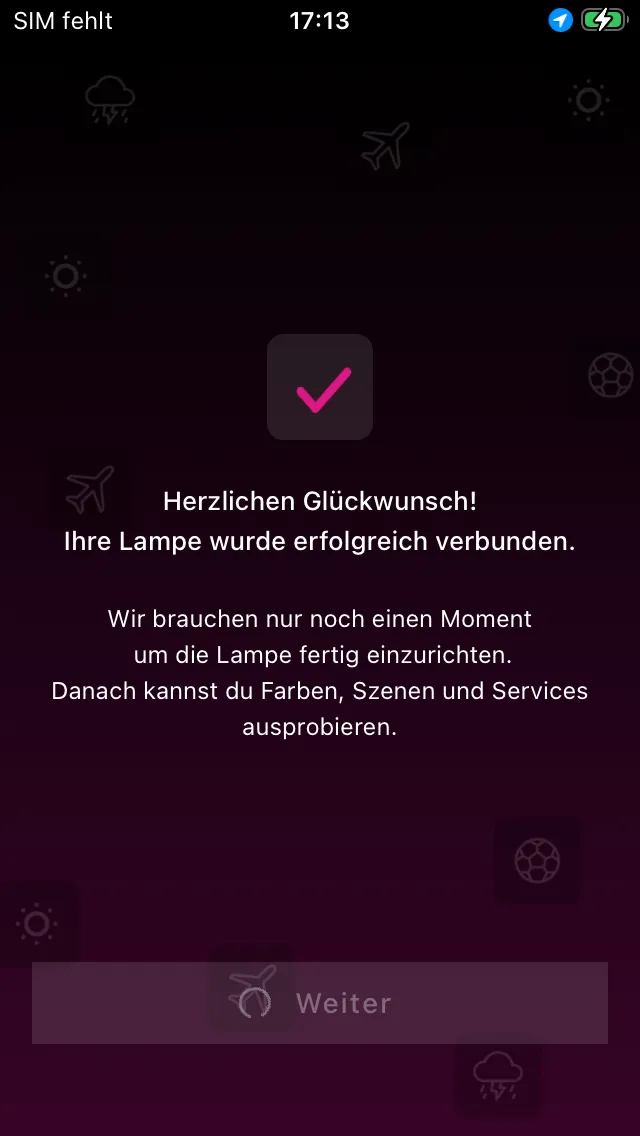
6. Done
Your lamp is now connected to your home Wi-Fi and ready to use.
The “lola-smart-…” Wi-Fi isn’t showing up?
If you can’t find the lola-smart-****** Wi-Fi in your smartphone’s settings, check the following:
- Is your lamp blinking slowly? It’s only in pairing mode when it is. If not, the section Put the lamp into pairing mode will help.
- Are you close enough to the lamp? Ideally less than 1 metre away.
- Turn Wi-Fi off and back on. Briefly turn off your smartphone’s Wi-Fi, wait a few seconds, and turn it back on. The
lola-smart-******Wi-Fi often then appears in the list.
Still have questions?
We're happy to help — create a support ticket or send us an email.